 Tuner.wiki
Fix Your Online Tuner: Troubleshooting Microphone Issues
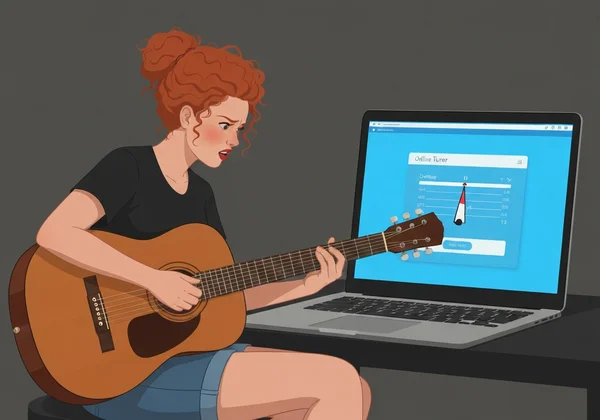
You’re ready to play. You’ve picked up your guitar, ukulele, or violin, navigated to your favorite online tuner, and played a note. But then... silence. The tuner doesn't react. Nothing moves, nothing registers, and your instrument remains out of tune. Is your online tuner not working?
This is a common and frustrating problem for many musicians. The bright side? Most of these fixes are quick and straightforward. Most issues aren't with the tuner itself but with the connection between your instrument and the tuner—your microphone.
Let's tackle the most common microphone and browser issues that keep your online tuner from working. We'll provide clear, step-by-step solutions to get you back in tune quickly. Once you've resolved the issue, you can get a perfect pitch with our free online tuner.
Microphone Tuning Problems: The First Check
When an online tuner can’t hear your instrument, the first place to look is your microphone setup. From browser permissions to hardware settings, these initial checks solve the vast majority of microphone tuning problems.
Granting Microphone Access: Browser & OS Permissions
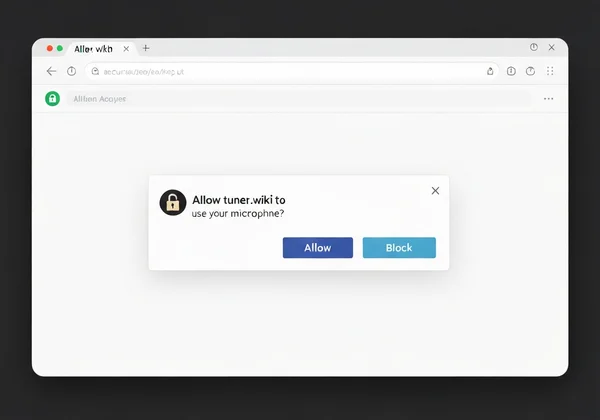
The most frequent reason an online tuner doesn't work is that it hasn't been given permission to use your microphone. For your privacy, web browsers like Chrome, Firefox, and Safari require you to explicitly grant access to any site that wants to use your mic.
When you first visit our online tuner, your browser should display a pop-up asking for permission. If you accidentally clicked "Block" or dismissed the notification, the tuner won't be able to hear anything.
Here’s how to fix it:
-
On Chrome/Edge: Click the padlock icon in the address bar to the left of the URL. Find the "Microphone" setting and switch it to "Allow."
-
On Firefox: Click the padlock icon in the address bar. If access is blocked, you'll see a "Blocked" message next to "Microphone." Click the "x" to remove the block and reload the page to be asked for permission again.
-
On Safari: Go to Safari > Settings > Websites. Click on "Microphone" in the left-hand menu, find
tuner.wikiin the list, and change its setting to "Allow."
Checking Microphone Input Levels and Device Selection
If you’ve granted permission but the tuner still isn’t responding, your computer might be listening to the wrong microphone, or the input volume might be too low. This is common if you have multiple audio devices, like a built-in mic, a webcam mic, and a USB headset.
First, ensure your computer is using the correct microphone.
- On Windows: Go to Settings > System > Sound. Under the "Input" section, select the microphone you want to use from the dropdown menu.
- On macOS: Open System Settings > Sound. Click the "Input" tab and select your preferred microphone from the list.
Next, check the input volume. In the same sound settings menu, you'll see an input level meter. Speak or play your instrument near the microphone. If the bar barely moves, increase the input volume or gain until it responds clearly.
External vs. Built-in Mics: Optimizing Your Setup
While the built-in microphone on your laptop or phone is convenient, it isn't always the best tool for the job, especially in a noisy room. These mics are designed to pick up sound from all directions, meaning they can easily be overwhelmed by a TV, a fan, or other conversations.
For the most accurate tuning, consider using an external microphone. Even a simple USB microphone or the mic on a pair of wired headphones can provide a cleaner signal. If you're using an external mic, make sure you've selected it as your primary input device using the steps above. If not, don't worry—just try to get your instrument closer to your device's built-in mic for a better result.
Browser Tuning Issues: Settings & Compatibility
Sometimes, the problem isn't your microphone but the browser itself. Outdated software or corrupted data can cause browser tuning issues that interfere with how web-based tools function. Fortunately, these are also easy to fix.
Clear Browser Cache and Update to the Latest Version
Your browser stores temporary data, known as a "cache," to help websites load faster. Over time, this data can become outdated or corrupted, causing unexpected problems. Clearing your cache is a simple troubleshooting step that can resolve many issues.
It's also essential to keep your web browser updated. Modern online tools like our accurate chromatic tuner rely on the latest web technologies, which may not be supported by older browser versions. An update often includes security patches and bug fixes that can improve performance and compatibility.
-
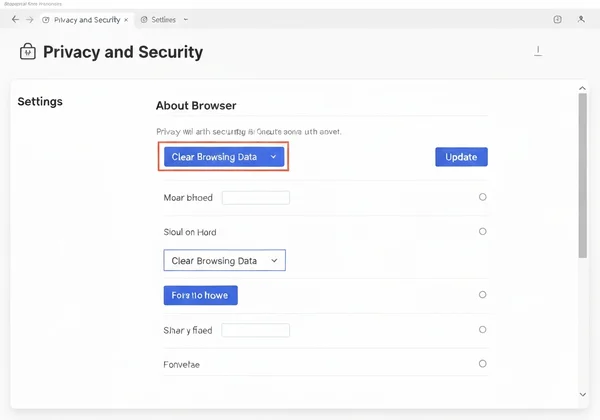
To clear your cache: Look in your browser’s settings under "Privacy" or "History."
-
To update your browser: Check the "About" section in your browser's menu, which will usually trigger an automatic check for updates.
Test with Different Browsers: Chrome, Firefox, Edge
If clearing the cache and updating doesn't work, the issue might be a specific setting or extension in your current browser. A quick way to diagnose this is to try a different browser.
For example, if you're using Safari, try opening our tuning tool in Chrome or Firefox. If the tuner works in the new browser, you'll know the problem is isolated to your original browser's configuration. This can save you a lot of time and help you narrow down the cause. Most modern browsers are free and easy to install.
Device-Specific Tuning Challenges & Solutions
The device you use affects how your online tuner works. Whether it's a phone, tablet, or desktop computer, each has unique settings that can impact performance. This device-specific tuning guide will help you tackle challenges on any platform.
Mobile Device Microphone Sensitivity and Permissions
Tuning on a smartphone or tablet is incredibly convenient, but mobile operating systems have strict permission controls. Just like on a desktop, you must grant microphone access to your web browser app.
On both Android and iOS, you can manage these permissions in your device's main Settings app. Find your browser (e.g., Chrome, Safari) in the list of applications and ensure the "Microphone" toggle is turned on. Also, be mindful of how you hold your device. It’s easy to accidentally cover the small microphone hole with your finger, which can completely block any sound.
Desktop Audio Settings: Sound Cards and Drivers
For desktop users, audio problems can sometimes be traced to sound cards and their drivers. A driver is software that helps your operating system communicate with hardware, like your sound card. If the driver is outdated or corrupted, your microphone may not function correctly.
While this is a more advanced step, updating your audio drivers can solve persistent input problems. You can typically find the latest drivers on your computer manufacturer's website (e.g., Dell, HP) or the sound card manufacturer's site (e.g., Realtek, Creative).
Environmental Factors Affecting Tuning Accuracy
Even with perfect technical settings, the environment you're in can impact how well an online tuner works. The microphone hears everything, not just your instrument.
Minimizing Background Noise for Clear Input
A clean audio signal is essential for accurate tuning. Background noise from televisions, fans, air conditioners, or even other people talking can confuse the tuner. It might struggle to isolate the specific frequency of the note you're playing.
To get the best results, find a quiet space to tune your instrument. If that’s not possible, try to position your instrument as close to the microphone as you can. This increases the signal-to-noise ratio, helping the tuner focus on your instrument and ignore the distractions.

Acoustic Interference and Instrument Resonance
Sometimes, the interference comes from the music itself. If you're in a room with other musicians, their instruments can cause acoustic interference. Similarly, the strings on your own instrument can resonate sympathetically. This means a string you aren't playing might vibrate slightly and produce a faint sound.
To avoid this, mute all the strings except the one you are actively tuning. This ensures that the only sound reaching the microphone is the note you want to tune, leading to a much more accurate reading from our online instrument tuner.
When All Else Fails: Advanced Tuner Troubleshooting & Support
If you’ve worked through all the steps above and are still facing issues, don't give up. There are a few final universal troubleshooting steps that can resolve even the most stubborn problems.
Restart Your Device and Close Other Applications
It’s the oldest trick in the IT book for a reason: turning your device off and on again often works wonders. A simple restart can clear out temporary system errors, reset hardware connections, and solve a wide range of unexplainable glitches.
Additionally, make sure no other applications are currently using your microphone. Video conferencing software (like Zoom or Teams), voice recorders, or other communication apps can sometimes "lock" the microphone, preventing your browser from accessing it. Close any unnecessary applications before you start tuning.
Contacting Support or Checking FAQs
Finally, remember that reliable tools come with reliable support. As creators of the online tuner, we want to ensure you have a seamless experience. If you've tried everything and are still stuck, check out our website’s FAQ section. It contains answers to common questions and may have a solution specific to your situation.
Don't Let Tech Glitches Stop Your Music: Tune with Confidence
Don't let tech problems interrupt your musical journey. By following these troubleshooting steps, you can solve nearly any microphone or browser issue and get your online tuner working perfectly. The key is to check your permissions, verify your settings, and ensure a clean environment.
Now that you know how to fix common problems, you can tune with confidence. Head over to Tuner.wiki and give it another try. Enjoy the pure, simple, and accurate tuning experience you deserve.
Common Questions About Online Tuner Problems
Why is my online tuner not detecting any sound?
The most common reason is that your browser doesn't have permission to access your microphone. Click the padlock icon in your browser's address bar and ensure that microphone access is set to "Allow" for the website. Also, check your computer's sound settings to confirm the correct microphone is selected and its input volume is turned up.
How do I grant microphone access to an online tuner?
When you first visit an online tuner like ours, your browser should show a pop-up asking for permission. Simply click "Allow." If you missed it, you can change the setting manually. In most browsers, clicking the padlock icon next to the URL will open a menu where you can enable microphone access. After that, our free tuner should work perfectly.
Can a noisy environment prevent my online tuner from working accurately?
Yes, absolutely. Online tuners rely on a clear audio signal. Background noise from TVs, fans, or conversations can interfere with the tuner's ability to isolate the frequency of your instrument's note. For best results, tune in a quiet room or place your instrument very close to the microphone.
What should I do if my tuner works on one device but not another?
This indicates the problem is with the specific device where it's not working, not the tuner website itself. Start by comparing the browser and system settings on both devices. Check microphone permissions, input levels, and ensure the browser on the non-working device is fully updated.
Is an online tuner less accurate if I'm having technical issues?
The tuner's core accuracy isn't affected, but its ability to provide a reading is. If the microphone signal is weak, distorted by noise, or blocked entirely, the tuner won't get the information it needs to work. Once you resolve the technical issue and provide a clean signal, a quality tool like the one on Tuner.wiki will be highly accurate.