 Tuner.wiki
How Music Teachers Use Free Online Tuners for Classroom Success
Introduction
Imagine your class tuning instruments in 5 minutes flat! For many music teachers, the daily challenge of tuning 30 different instruments before class begins can feel overwhelming. Our free online tuner solves this problem with a simple, web-based tool that requires zero installations.
This guide shows educators how to:
- Eliminate pre-class tuning chaos and save 10+ minutes per lesson.
- Turn tuning exercises into collaborative, student-driven learning.
- Solve common technical classroom issues quickly and efficiently.
Start streamlining your classroom today by using our free chromatic tuner—no accounts or downloads needed.
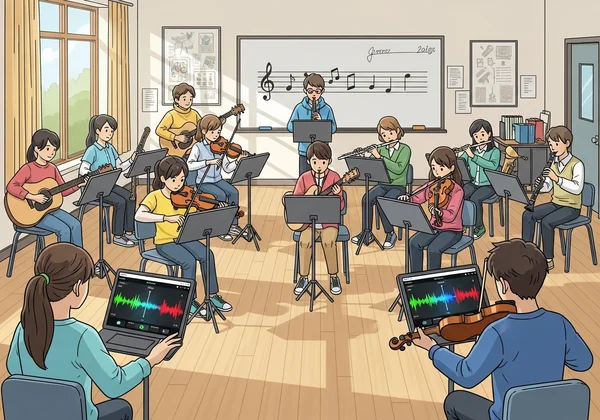
Setting Up for Classroom Success
Modern music classrooms often have a mix of device types and varying tech skills. Here’s how to ensure every tuning session runs smoothly from the start.
Device Compatibility & Internet Requirements
This tool works on all standard classroom technology, ensuring no student is left behind:
- Chromebooks: The go-to device for a majority of schools.
- Student smartphones: Compatible with iOS 12+ and Android 8+.
- Teacher laptops: Fully functional on Windows, Mac, and Linux systems.
Connectivity Needs:
- A stable internet connection of at least 2 Mbps is recommended. You can test your connection beforehand to ensure a smooth experience.
- The tuner works offline after the initial page load, making it reliable even with spotty Wi-Fi.
Pro Tip: Bookmark the tuner's webpage on all classroom devices for instant access.
Peer-Assisted Tuning Exercises
Collaborative tuning builds critical listening skills while empowering students and reducing the teacher's workload. Here are some effective exercises you can implement.
Pairing Students for Feedback Practice
This simple setup turns a passive task into an active listening challenge.
- Create Tuner + Listener Teams:
- Student A uses the online tuner to tune their instrument.
- Student B listens without looking at the screen and identifies any pitch differences by ear.
- Students discuss their findings and then rotate roles after each instrument is tuned.
The Tuning Chain Activity
This exercise is perfect for ensembles and promotes accountability.
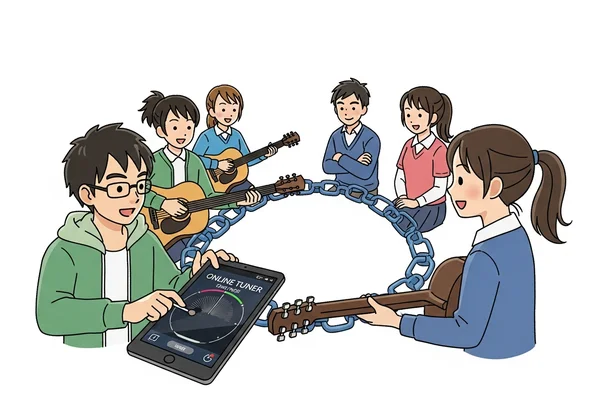
Objective: Teach students to trust their ears and verify tuning within a group.
- Setup: Arrange students in small groups or a large circle.
- Execution: The first student tunes one string on their instrument using the tool. The next student in the chain listens and gives a verbal confirmation ("sounds good" or "a little flat") before checking the pitch themselves with the tuner. The chain continues until everyone has participated.
- Outcome: This activity reinforces the terminology of being sharp or flat in a practical context and builds a sense of collective responsibility for the ensemble's sound.
"My cello students now identify being 10 cents flat without looking at screens!" – Maria K., HS orchestra director
Solving Common Classroom Tuning Issues
Even the simplest tools require a few troubleshooting strategies. Here’s how to handle common classroom hiccups.
Handling Mic Permission Errors
When a browser blocks microphone access, the fix is usually simple.
- Demonstrate Access Steps: Show students how to enable the microphone for our site.
- Chrome: Click the 🔒 lock icon in the address bar → Site settings → Allow microphone.
- Safari: Go to Preferences → Websites → Microphone → Find our site and set to "Allow."
- Create a Classroom Poster: A visual guide with screenshots can help students solve this independently.
- For School-Managed Devices:
- Request your IT department whitelist our website's URL.
- Suggest they add it to the global "Allowed microphone sites" list in their device management console.
Troubleshooting in Low-Bandwidth Environments
We’ve heard from educators like you about the challenges of unreliable school internet. Our tuner is designed to work well even in these conditions.
- Pre-load the Tuner: Have students open the tuner's webpage at the beginning of class. After its initial load, the core tuning functionality works offline, so it won’t need a constant connection.
- Stagger Tuning Times: Instead of having all students access the site at once, create a rotation. Have the strings tune first, followed by the winds, then brass. This prevents network congestion.
- Use "Tuning Captains": For classrooms with very few devices, designate one student per section as the "Tuning Captain." This student uses the device to check their peers, minimizing both device and network usage.
Turn Tuning Time Into Student-Driven Learning: Here’s How
Tuning doesn't have to be a chore that eats into valuable lesson time. Instead, it can become an interactive part of the curriculum.
Demonstrating Acoustics in Real Time
Use the tuner's real-time frequency display to give students a visual representation of sound waves. You can show them exactly what a 440 Hz "A" looks like and how the frequency changes as they adjust their instrument. This bridges the gap between abstract theory and practical application.
Historical Tunings vs. Modern Standards
Take your students on a historical journey through music.
"Today we'll tune using the modern A=440Hz standard. After break, we'll experiment with the Baroque A=415Hz standard using the tuner's manual mode. Let's listen and discuss how this small change in pitch standard influenced musical styles and instrument construction."
Calibrating Student Ear Training
The most valuable tuner is a well-trained ear. Use our tool to support aural skill development. Encourage students to first try tuning a note by ear, either to a reference pitch or another instrument, and then use the online tuner to verify their accuracy. The instant visual feedback helps them connect what they hear with precise pitch measurement, sharpening their listening skills over time.
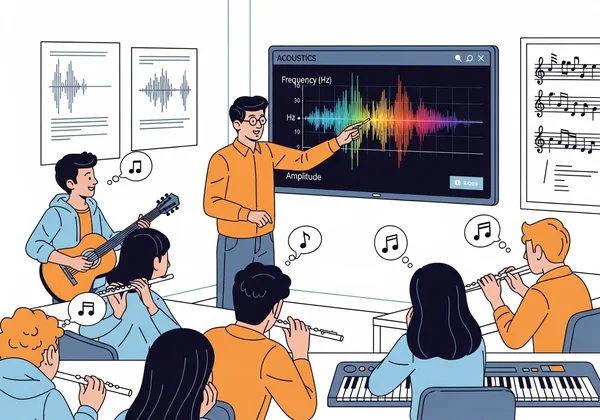
Explore these concepts with our accurate tuner and bring your music theory lessons to life.
FAQ Section
Can your online tuner handle multiple instruments tuning simultaneously?
Yes, our online tuner is designed for this. When using separate devices, it works perfectly for simultaneous tuning. For a full ensemble, follow these steps for an organized session:
- Set all devices to the same reference pitch in our online tuner.
- Choose instrument-specific presets if available.
- Have sections tune sequentially (e.g., strings → winds → percussion) to maintain order.
For individual practice in a noisy room, try our tuner with headphones for the best results.
Is microphone tuning accurate enough for student exams?
Our tool meets ISO-16 tuning standards and is accurate to within ±1 cent under the right conditions:
- The testing environment is reasonably quiet.
- The student plays a steady, single note.
- The microphone is within 2 feet of the instrument.
For formal assessments:
- Have the teacher verify tuning accuracy.
- Conduct a secondary check with tuning forks.
How do I organize group tuning with limited devices?
Device sharing is a great way to promote efficiency and teamwork. Device Sharing Strategies:
| Group Size | Time Saved | Method |
|---|---|---|
| 5 students | 8 minutes | Station rotation (3 min/station) |
| 15+ students | 15 minutes | "Tuning buddies" peer system |
- Set up a few "tuning stations" organized by instrument family.
- Use color-coded cards or a simple checklist to track completion.
- Rotate student groups through the stations every few minutes.
"With 6 iPads, I tune 24 strings in 12 minutes using stations with this free tuner." – David R., middle school guitar instructor
Set up your own tuning stations today with zero equipment budget.